The two images below display the Narrative/PoE tab. The first image displays the Narrative/PoE tab when the selected indicator's target is achieved or over achieved;
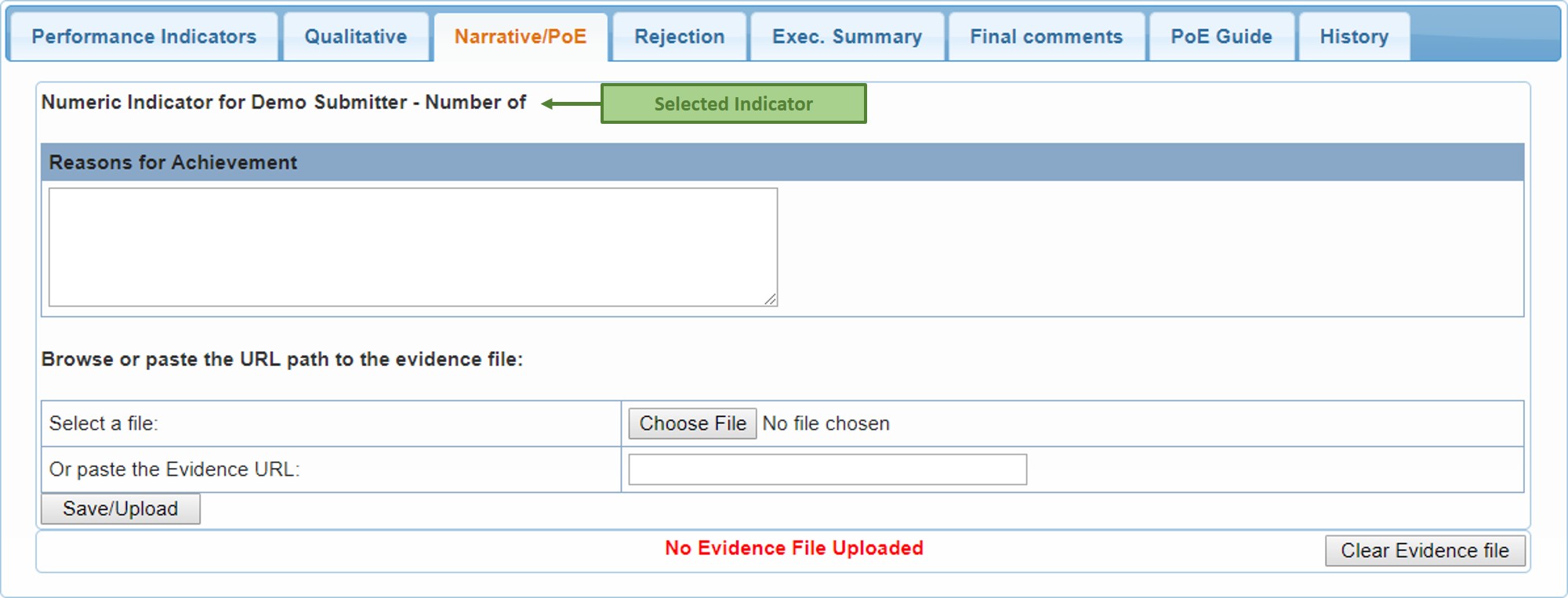
When the target is over achieved, the system automatically opens the Narrative/PoE tab immediately after you save the Numeric Actual in the Performance Indicators tab, as displayed above. Just below the selected indicator description is the Reasons for Achievement text box. Here you must explain how or why the target was over achieved.
For an indicator whose Numeric Actual is equal to the Numeric Target, i.e., just achieved, it is optional to explain why or how the target was achieved, and therefore the system does not automatically open the Narrative/PoE tab after you have saved the Numeric Actual. You must then open the tab yourself to supply the explanation.
The second image below displays the Narrative/PoE tab when the selected indicator's target is not achieved;
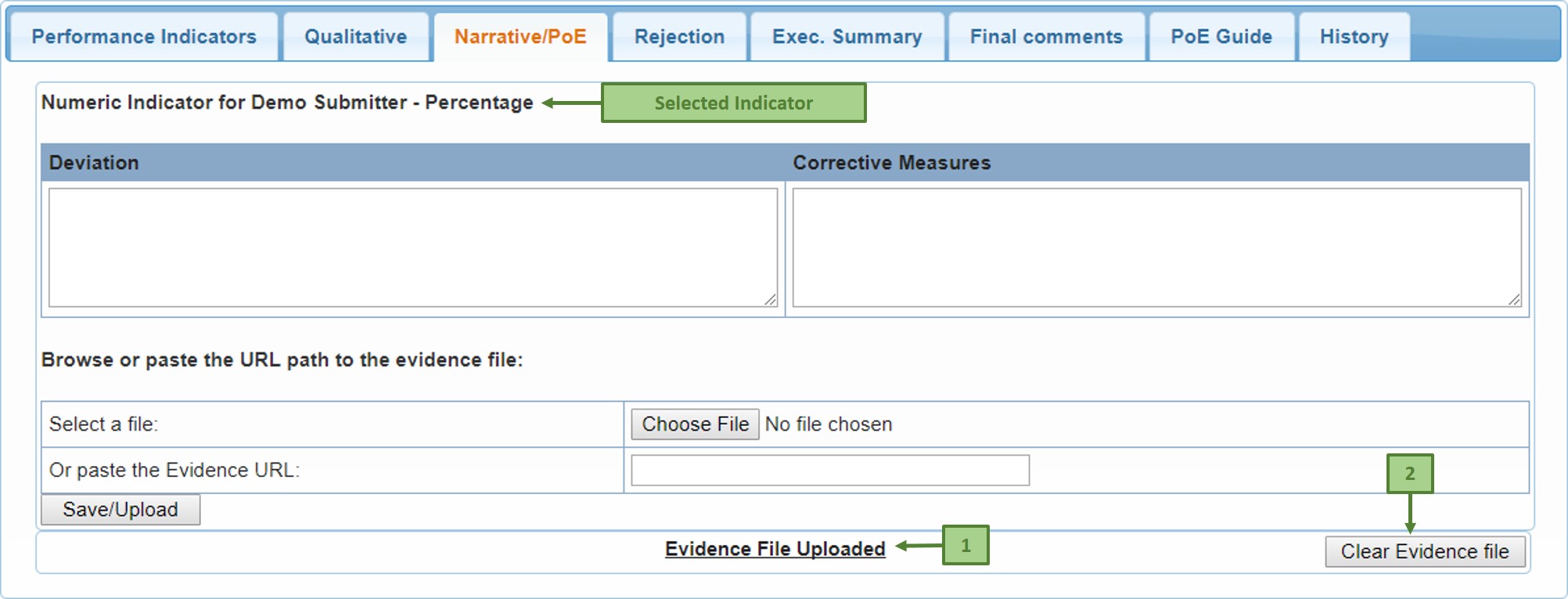
When the target is not achieved, the system once again automatically opens the Narrative/PoE tab immediately after you save the Numeric Actual in the Performance Indicators tab, as displayed above. Just below the selected indicator description are the Deviation and the Corrective Measures text boxes. In the Deviation text box you must explain how or why the target was not achieved. In the Corrective Measures text box you must supply the suggested corrective measures to improve the performance results.
To upload an evidence file, simply click the Choose File button, then in the pop-up window that appears, navigate to the evidence file location and select the evidence file (by double-clicking on it, or by clicking on it and clicking the Open button ).
If the evidence file is located in the web - e.g., in Dropbox, simply copy the file link/url and paste it in the URL field, just below the Choose File button. After uploading the evidence file, that gets displayed by "Evidence File Uploaded" at the bottom part of the page - label 1 above. This is also a link that opens the uploaded file. When there is no evidence file uploaded, this displays "No Evidence File Uploaded" in bold red
You may also remove the evidence file by clicking the Clear Evidence file Button - label 2 above
- You can only upload one file per indicator. However, if you have more than one file to upload, first put the files in the same folder, then zip them, and then upload the zip file
- Verifiers and Approvers also have permission to give input/make amendments in the Narrative/PoE tab, including uploading the evidence file(s)
- Each text box allows a maximum of 2000 characters
When you have supplied all the required input for this tab, click the Save/Upload button to capture your input